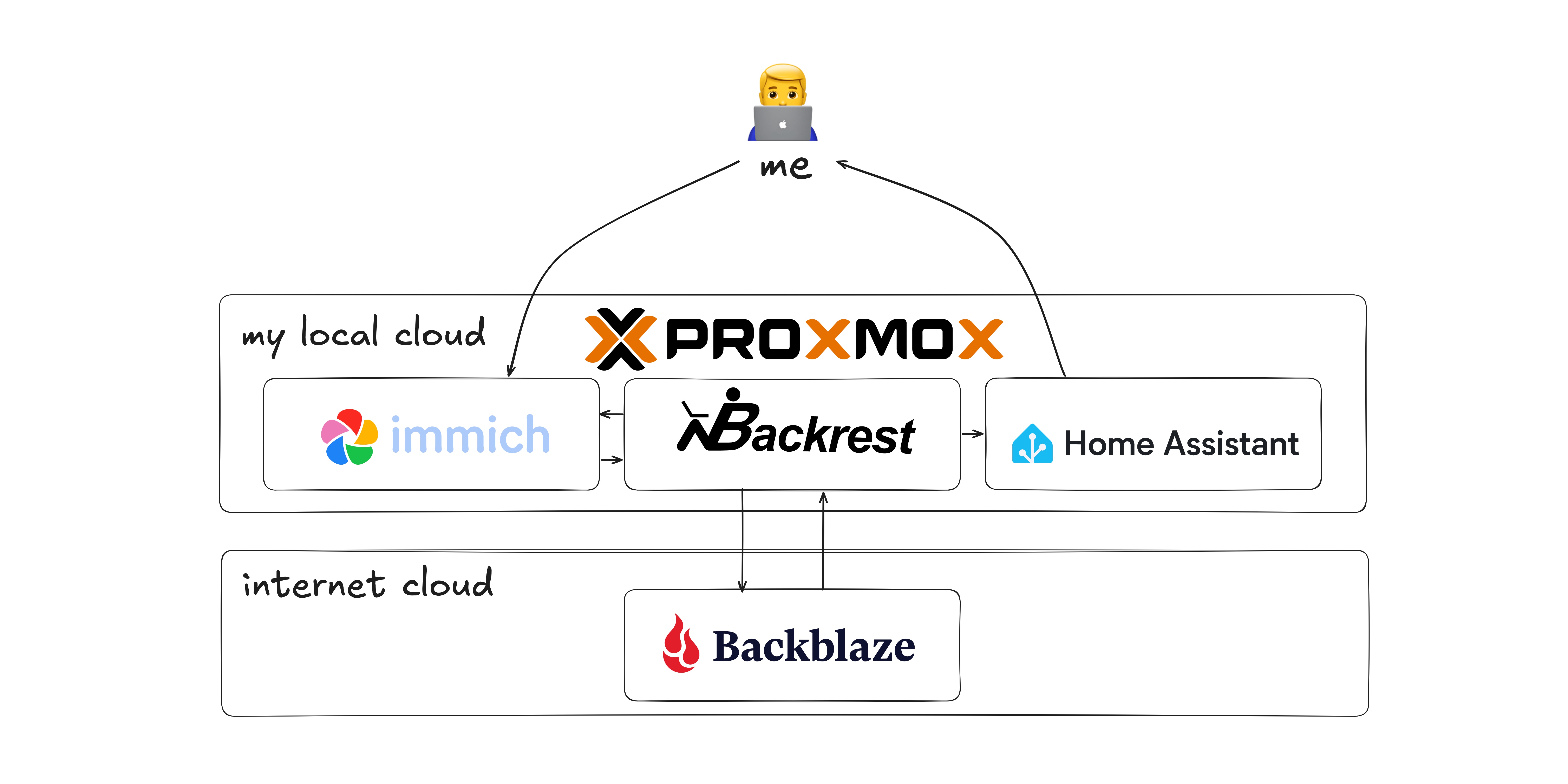
I had to test that my Immich backup setup is working so I can sleep well at night without worrying about my family photos archive. I’ve decided to write it down so I don’t have to improvise with AI, but instead know exactly what to do in the worst case scenario when I actually need to use the backup to restore our photos.
There are many “Immich setup” guides on the internet, and there are also many “Backup guides”, but I didn’t see anywhere people actually test if a full recovery of the backup works. I’ve decided to share my notes on how to create such a backup. Who knows, maybe you’ll find it helpful.
I know I’m not really explaining each step, but as said this is more of a documentation of what to do, not why do it. You can always ask AI for an explanation - it shines at it.
Contents
- Prerequisites
- Backup setup
- Full backup restore procedure
- 1. Download the backup from Backrest
- 2. After the files are downloaded check the permissions
- 3. Check the exact path of the immich directories
- 4. Create new LXC for new Immich instance
- 5. Stop the container after it is installed
- 6. In the config of new lxc container add mount point and id mappings
- 7. Inside the new LXC container run
- 8. Set the upload location for new Immich container
- 9. The backup contains DB dump
- 10. Verify the restore
- Monitoring the backup
Prerequisites
I’m not running the apps in this guide using Docker. Instead I’m running them as LXC on Proxmox VE (Debian-based) v9.2.3.
Creating the mount point
I’ll skip going over this step here. There are plenty of guides on how to do it. I had to resize the existing lvm to have space for the separate mount point for Immich, so just google how to create a new one. I might document the process of resizing an existing one too, because it deserves a separate guide.
I will assume the mount point is already created and available at /mnt/immich-media from the proxmox host.
Immich setup
Create a new LXC for a new Immich instance using the helper script: community-scripts.org/scripts/immich,
LXC id is 113, Immich services are run by the immich user.
1. Stop the container after it is installed
pct stop 113
2. In the config of new lxc container add the mount point
nvim /etc/pve/lxc/113.conf
and add the following line:
mp0: /mnt/immich-media/,mp=/mnt/immich-media
3. Inside the new LXC container run
pct start 113
4. Set /mnt/immich-media/ as the location for uploads of the Immich container
The following steps are taken from the official guide of the Immich LXC Helper Script - GitHub discussion
a. Enter the container
pct enter 113
b. Stop the Immich app services
systemctl stop immich-web immich-ml
c. Open .env file
vi /opt/immich/.env
d. Change the upload location
IMMICH_MEDIA_LOCATION=/mnt/immich-media
e. Remove old symbolic links created by the helper script
rm /opt/immich/app/upload
rm /opt/immich/app/machine-learning/upload
f. Create new symbolic links
ln -sf /mnt/immich-media /opt/immich/app/upload
ln -sf /mnt/immich-media /opt/immich/app/machine-learning/upload
g. Ensure the ownership of the immich folder
chown -R immich:immich /opt/immich
h. Restart the app services and preview logs
systemctl start immich-ml immich-web && tail -f /var/log/immich/web.log
i. Optional: delete the old upload folder
Once the app is confirmed to be working the old upload folder can be deleted.
rm -rf /opt/immich/upload
5. Confirm the Immich app is working
Navigate to the URL printed in the log after the container was created, and try uploading some files.
Backrest setup
Set up a new LXC using the helper script with default settings: community-scripts.org/scripts/backrest
LXC id is 114, Backrest is run by the root user.
Giving access to the mount point for both Immich and Backrest
1. Stop both services from running
pct stop 113
pct stop 114
2. Create group
groupadd -g 20000 immich-media
3. Change the /etc/subgid
echo 'root:20000:1' >> /etc/subgid
4. Modify the lxc configs
To both /etc/pve/lxc/113.conf and /etc/pve/lxc/114.conf add lines:
mp0: /mnt/immich-media,mp=/mnt/immich-media

lxc.idmap: u 0 100000 65536
lxc.idmap: g 0 100000 20000
lxc.idmap: g 20000 20000 1
lxc.idmap: g 20001 120001 45535
5. Set filesystem permissions on the host
chgrp -R 20000 /mnt/immich-media
chmod -R g+rwX /mnt/immich-media
find /mnt/immich-media -type d -exec chmod g+s {} +
setfacl -R -d -m g:20000:rwX /mnt/immich-media
6. Create the group and add service users inside each container
pct start 113
pct start 114
pct exec 113 -- bash -c "groupadd -g 20000 sharedmedia && usermod -aG sharedmedia immich"
pct exec 114 -- bash -c "groupadd -g 20000 sharedmedia && usermod -aG sharedmedia root"
pct reboot 113
pct reboot 114
7. Verify the access rights
pct exec 113 -- su -s /bin/bash immich -c "touch /mnt/immich-media/.test1 && rm /mnt/immich-media/.test1 && echo OK"
pct exec 114 -- bash -c "touch /mnt/immich-media/.test2 && rm /mnt/immich-media/.test2 && echo OK"
Backup setup
A prerequisite here is to create an account on Backblaze.
Backrest plan and repository setup
I followed the guide here: linuxserver.io blog to set up the backup plan and restic repository on Backblaze B2. I won’t copy its instructions, but thanks to the Backrest UI I can easily show the end result in JSON format. Using the JSON configs and the guide above, the UI configuration can be replicated easily enough.
Repository config:
{
    "id": "immich-backup",
    "uri": "s3://<backblaze b2 region>/<bucket name>",
    "password": "<pass>",
    "env": [
        "AWS_ACCESS_KEY_ID=<key id>",
        "AWS_SECRET_ACCESS_KEY=<application key>"
    ],
    "flags": [],
    "prunePolicy": {
        "schedule": {
            "cron": "0 0 1 * *",
            "clock": "CLOCK_LAST_RUN_TIME"
        },
        "maxUnusedBytes": "0",
        "maxUnusedPercent": 10
    },
    "hooks": [],
    "autoUnlock": false,
    "checkPolicy": {
        "schedule": {
            "cron": "0 1 */7 * *",
            "clock": "CLOCK_LAST_RUN_TIME"
        }
    },
    "commandPrefix": {
        "ioNice": "IO_DEFAULT",
        "cpuNice": "CPU_DEFAULT"
    },
    "guid": "<some id>",
    "autoInitialize": false,
    "shared": false,
    "originInstanceId": "",
    "forgetPolicy": {
        "schedule": {
            "cron": "0 2 * * *",
            "clock": "CLOCK_LAST_RUN_TIME"
        },
        "retention": {
            "policyTimeBucketed": {
                "hourly": 0,
                "daily": 14,
                "weekly": 8,
                "monthly": 12,
                "yearly": 2,
                "keepLastN": 0
            }
        }
    }
}
Backup plan config:
{
    "id": "my-immich-backup-daily",
    "repo": "immich-backup",
    "paths": [
        "/mnt/immich-media/backups",
        "/mnt/immich-media/dotenv",
        "/mnt/immich-media/encoded-video",
        "/mnt/immich-media/library",
        "/mnt/immich-media/profile",
        "/mnt/immich-media/thumbs",
        "/mnt/immich-media/upload"
    ],
    "excludes": [],
    "retention": {
        "policyTimeBucketed": {
            "hourly": 24,
            "daily": 30,
            "weekly": 0,
            "monthly": 12,
            "yearly": 0,
            "keepLastN": 0
        }
    },
    "hooks": [<added in sections below>],
    "iexcludes": [],
    "backup_flags": [],
    "schedule": {
        "cron": "0 3 * * *",
        "clock": "CLOCK_LOCAL"
    },
    "skipIfUnchanged": false
}
Creating Immich database dump
Before creating a backup snapshot it is crucial to include an up-to-date database snapshot too. I do it using the Backrest backup plan feature called Hooks. You can already see them in the JSON configs above.
Coordination between Backrest and Immich containers
The problem is that I want to create a db dump as part of the Backrest workflow, but the db is in the Immich container, so I had to come up with a way to communicate from Backrest to Immich to invoke the creation of the db snapshot. Since both containers are unprivileged, I chose to use ssh.
1. Install SSH Server on LXC 113
pct exec 113 -- bash -c "apt update && apt install -y openssh-server"
pct exec 113 -- systemctl enable --now ssh
2. Install SSH Client on LXC 114
pct exec 114 -- bash -c "apt update && apt install -y openssh-client"
3. Generate SSH Key on LXC 114
pct exec 114 -- ssh-keygen -t ed25519 -f /root/.ssh/id_ed25519_lxc_shared -N ""
The root@backrest comment at the end of the public key is just a label - SSH ignores it during authentication.
4. Copy Public Key to LXC 113
Get the public key:
pct exec 114 -- cat /root/.ssh/id_ed25519_lxc_shared.pub
Add it to LXC 113:
pct exec 113 -- mkdir -p /root/.ssh
pct exec 113 -- bash -c "echo '<public key>' >> /root/.ssh/authorized_keys"
pct exec 113 -- chmod 700 /root/.ssh
pct exec 113 -- chmod 600 /root/.ssh/authorized_keys
5. Lock Down SSH on LXC 113
Edit /etc/ssh/sshd_config inside LXC 113, add:
PasswordAuthentication no
AllowUsers root@<lxc 114 ip>
Restart SSH:
pct exec 113 -- systemctl restart ssh
6. Create SSH Config on LXC 114
Create /root/.ssh/config inside LXC 114:
Host immich
    HostName <lxc 113 ip>
    User root
    IdentityFile /root/.ssh/id_ed25519_lxc_shared
Set permissions:
pct exec 114 -- chmod 600 /root/.ssh/config
7. Test SSH Connection
pct exec 114 -- ssh -o StrictHostKeyChecking=accept-new immich echo "SSH OK"
8. Test Running Scripts Remotely
pct exec 114 -- ssh immich /usr/local/bin/immich-backup-pre.sh
pct exec 114 -- ssh immich /usr/local/bin/immich-backup-post.sh
Pre-backup hook configuration
Used for creating database dump as part of the backup snapshot. To make sure the database is in sync with the files I stop the Immich services to ensure there are no operations happening by any user during the creation of the backup. It is set up in the Backrest UI.
Runs on event: CONDITION_SNAPSHOT_START added in the Backrest Plan. It is a Command hook, with ON_ERROR_FATAL error behavior, because I don’t want to create a backup if it fails.
The command itself is just one line:
ssh immich /usr/local/bin/immich-backup-pre.sh
Note: After the first attempt of doing the restore I had to modify the script to make sure the db dump file has correct name that Immich expects. I think the timestamp and the app and postgres versions parts are the most important there.
Pre-backup hook script
In the Immich container:
pct enter 113
Saved as:
vi /usr/local/bin/immich-backup-pre.sh
and set to be executable with:
chmod +x /usr/local/bin/immich-backup-pre.sh
Content:
#!/bin/bash
set -euo pipefail

# Those variables come from /opt/immich/.env file in the original Immich container
# or from /mnt/immich-media/dotenv/.env from backup
DUMP_DIR="/mnt/immich-media/backups"
PG_USER="immich"
PG_PASS=":-)"
PG_DB="immich"
PG_HOST="127.0.0.1"

# logging helper
log() {
  echo "[$(date '+%Y-%m-%d %H:%M:%S')] $*"
}

log "Starting Immich backup preparation"

# Ensure dotenv directory exists and back up the .env file
mkdir -p /mnt/immich-media/dotenv
cp /opt/immich/.env /mnt/immich-media/dotenv/.env
log "Backed up .env to /mnt/immich-media/dotenv/.env"

# Stop Immich services
log "Stopping Immich services..."
systemctl stop immich-web immich-ml
log "Immich services stopped"

# Wait briefly for any in-flight writes to settle
sleep 2

# Dump database to a temp file (atomic replace)
log "Dumping database..."

IMMICH_VERSION=$(/opt/immich/app/cli/bin/immich --version)
TIMESTAMP=$(date +%Y%m%dT%H%M%S)

PG_VERSION_RAW=$(sudo -u postgres psql -qtAX -c "SHOW server_version;")
PG_VERSION=$(echo "$PG_VERSION_RAW" | grep -oE '^[0-9]+\.[0-9]+')
PG_TAG="pg${PG_VERSION}"

# The `uploaded-` prefix is what Immich expects, don't change it
DUMP_PREFIX="uploaded-custom-immich-db-backup"
DUMP_FILENAME="${DUMP_PREFIX}-${TIMESTAMP}-v${IMMICH_VERSION}-${PG_TAG}.sql.gz"
DUMP_FILE="$DUMP_DIR/$DUMP_FILENAME"
DUMP_TMP="$DUMP_DIR/$DUMP_FILENAME.tmp"

PGPASSWORD="$PG_PASS" pg_dump -U "$PG_USER" -h "$PG_HOST" "$PG_DB" | gzip > "$DUMP_TMP"

# Verify the dump is not empty
if [ ! -s "$DUMP_TMP" ]; then
 log "ERROR: Database dump is empty!"
 exit 1
fi

# Atomic move into place
mv "$DUMP_TMP" "$DUMP_FILE"
log "Database dump saved to $DUMP_FILE ($(du -h "$DUMP_FILE" | cut -f1))"

# Remove stale dumps with the same prefix (keep only the current one)
log "Removing stale database dumps with prefix ${DUMP_PREFIX}..."
find "$DUMP_DIR" -maxdepth 1 -name "${DUMP_PREFIX}-*.sql.gz" ! -name "$DUMP_FILENAME" -exec rm -v {} \;

# Stop Postgres
log "stopping PostgreSQL"
systemctl stop postgresql
log "PostgreSQL stopped"

log "Backup preparation complete"
Post-backup hook configuration
Runs after the snapshot finishes, on both failure and success. It’s only there to restart the services that the pre hook stopped. It is set up in the Backrest UI.
Runs on event: CONDITION_SNAPSHOT_END added in the Backrest Plan. It is a Command hook, with ON_ERROR_RETRY_10MINUTES error behavior.
This command is also a one-liner:
ssh immich /usr/local/bin/immich-backup-post.sh
Saved in the Immich container as:
vi /usr/local/bin/immich-backup-post.sh
and set to be executable with:
chmod +x /usr/local/bin/immich-backup-post.sh
Content:
#!/bin/bash
# -e intentionally omitted - errors are handled via $ERRORS below
set -uo pipefail

# logging helper
log() {
  echo "[$(date '+%Y-%m-%d %H:%M:%S')] $*"
}

ERRORS=0

log "Starting Immich services recovery"

# Start Postgres first (other services depend on it)

log "Starting PostgreSQL..."

if systemctl start postgresql; then
 log "PostgreSQL started"
else
 log "ERROR: Failed to start PostgreSQL"
 ERRORS=$((ERRORS + 1))
fi

# Wait for Postgres to be ready before starting Immich
if command -v pg_isready &>/dev/null; then
 log "Waiting for PostgreSQL to accept connections..."
 for i in $(seq 1 60); do
  if pg_isready -U postgres &>/dev/null; then
   log "PostgreSQL is ready"
   break
  fi
  if [ "$i" -eq 60 ]; then
   log "WARNING: PostgreSQL not ready after 60 seconds, starting services anyway"
  fi
  sleep 1
 done
fi

# Start Immich services
log "Starting Immich services..."
if systemctl start immich-ml immich-web; then
 log "Immich services started"
else
 log "ERROR: Failed to start Immich services!"
 ERRORS=$((ERRORS + 1))
fi

if [ "$ERRORS" -gt 0 ]; then
 log "WARNING: Completed with $ERRORS error(s)"
 exit 1
fi

log "All services recovered successfully"
Full backup restore procedure
1. Download the backup from Backrest
Download it to /mnt/immich-media/test-backup/
2. After the files are downloaded check the permissions
They should be set to the group immich-media with gid 20000 - the group should have rwx permissions when you run ls. Also you can use getfacl to see the default ACL, it should be there in place already.
In case permissions are wrong, run (on the host):
chmod -R g+rwX /mnt/immich-media/test-backup
setfacl -R -d -m g:20000:rwX /mnt/immich-media/test-backup
3. Check the exact path of the immich directories
During the test it was:
/mnt/immich-media/test-backup/immich-media/
4. Create new LXC for new Immich instance
Using the helper script: community-scripts.org/scripts/immich,
5. Stop the container after it is installed
pct stop 115
6. In the config of new lxc container add mount point and id mappings
nvim /etc/pve/lxc/115.conf
and add the following:
mp0: /mnt/immich-media/test-backup/immich-media/,mp=/mnt/immich-media

lxc.idmap: u 0 100000 65536
lxc.idmap: g 0 100000 20000
lxc.idmap: g 20000 20000 1
lxc.idmap: g 20001 120001 45535
7. Inside the new LXC container run
pct start 115
pct exec 115 -- bash -c "groupadd -g 20000 sharedmedia && usermod -aG sharedmedia immich"
pct reboot 115
8. Set the upload location for new Immich container
Set /mnt/immich-media/test-backup/immich-media/ as the location for uploads.
Steps taken from official guide of the Immich LXC Helper Script - GitHub discussion
a. Enter the new container
pct enter 115
b. Stop Immich
systemctl stop immich-web immich-ml
c. Open .env file
vi /opt/immich/.env
d. Change the location env var
IMMICH_MEDIA_LOCATION=/mnt/immich-media
e. Remove old symlinks
rm /opt/immich/app/upload
rm /opt/immich/app/machine-learning/upload
f. Create new symlinks
ln -sf /mnt/immich-media /opt/immich/app/upload
ln -sf /mnt/immich-media /opt/immich/app/machine-learning/upload
g. Ensure the ownership of the immich directory
chown -R immich:immich /opt/immich
h. Restart the app and preview its logs
systemctl start immich-ml immich-web && tail -f /var/log/immich/web.log
9. The backup contains DB dump
New immich instance should be able to be initialized using this db dump. Immich restore docs
10. Verify the restore
Once the app is running, confirm the restore worked:
- Log in with your existing admin credentials
- Browse to a known album or timeline - previously uploaded photos and videos should be visible
- Check that user accounts are intact under Administration → Users
- If you spot test/placeholder albums from the fresh install, delete them
First restore test
The learnings from the first full restore test, that are already included in the notes above, so feel free to ignore them.
-
After the backup was downloaded, the correct group permissions were not set.
Would be nice to fix it somehow, but can also be quickly adjusted manually along with other parts so
¯\_(ツ)_/¯. -
IMO it’s better to back up all Immich-related directories (even /backups, /thumbs/ and /encoded-video) - I don’t care so much about the space, I care more about the server overhead of e.g. transcoding all videos again. Also, when starting the new LXC the app expected /encoded-video and /thumbs directories to be there, and it was failing.
UPDATED: the Backrest plan to include those directories.
-
The db_dump had an “unrecognized version” error, and couldn’t be used at first to restore the app. I had to rename it. Also, it’s better to put it in the /backups directory and let it be one of the files backed up there - it will always be the most recent one. The name that worked for me:
"uploaded-custom-immich-db-backup-20260703T190154-v2.7.5-pg16.14.sql.gz".UPDATED: the Pre-backup hook script
Second restore test
The second test used a backup from Immich version 2.7.5 and restored it to a new Immich instance in LXC 115 running version 3.0.1, because there was a major update the day before the test. I was a bit nervous, but following this guide 1:1 the restore worked flawlessly.
Monitoring the backup
I wanted to have some kind of notification system in place in case the backup workflow fails.
Backrest is a good enough GUI for restic but I didn’t see a notification system there.
I came up with a way for my Home Assistant instance to notify me on my phone. The solution is very easy because the Home Assistant Webhook API doesn’t use authentication, it treats the webhook URLs as unguessable secrets.
Home Assistant automation
alias: Immich Backup failure
description: Notify when Immich backup fails
triggers:
  - trigger: webhook
    allowed_methods:
      - POST
      - PUT
    local_only: true
    webhook_id: "<webhook id>"
conditions: []
actions:
 - action: persistent_notification.create
    data:
      title: Immich backup alert
      message: "{{ trigger.json.message }}"
      notification_id: backup failed
  - action: notify.send_message
    target:
      entity_id: notify.my_phone
    data:
      title: Immich backup alert
      message: "{{ trigger.json.message }}"
mode: single
Handling failures in Backrest
In the Backrest backup plan I’ve added more hooks.
The hooks run on CONDITION_SNAPSHOT_ERROR, CONDITION_CHECK_ERROR, CONDITION_FORGET_ERROR, CONDITION_PRUNE_ERROR.
The command is the same for all, and just changes the message to indicate which operation has failed.
curl -s -X POST http://<home assistant ip>/api/webhook/<webhook id> \
-H "Content-Type: application/json" \
-d '{"message": "Immich backup SNAPSHOT/CHECK/FORGET/PRUNE failed"}'
With this setup, if any operation fails I will know to open Backrest and investigate.
Note: And they all have ON_ERROR_IGNORE error behavior, because well, that’s the deepest I want to go for monitoring here.
Periodic restore testing
Plan to run this restore procedure every 3 months or so. The monitoring notifies me about failures, but it also might fail. The whole backrest container might fail. Also, a full restore test is the only way to catch silent data corruption before it’s too late.